Walkthrough: from sign in to a first confidential payment
Six steps on Solana devnet with test money that has no value. You need Phantom or Solflare in your browser and nothing else: Sotto sends the test SOL and the test dollars. With no wallet at all, explore the demo company instead.
Switch your wallet to devnet
Sotto runs on devnet, so the wallet has to be on devnet too. A new, empty account is enough.
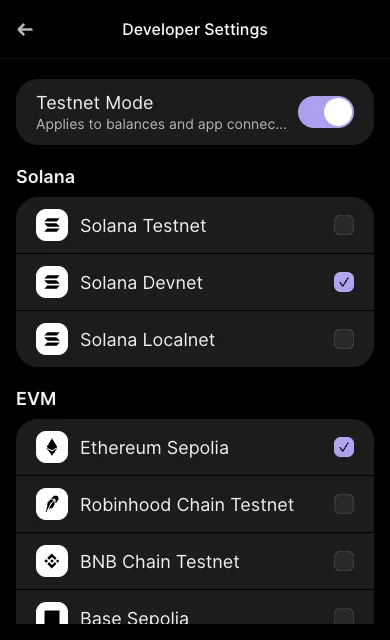
- Phantom (checked with 26.31.0): open the account menu at the top left, then the gear, then Developer Settings, and turn on Testnet Mode. Phantom goes back to its home screen and shows You are currently in Testnet Mode. Solana Devnet is selected already: it is ticked under Developer Settings, as in the picture.
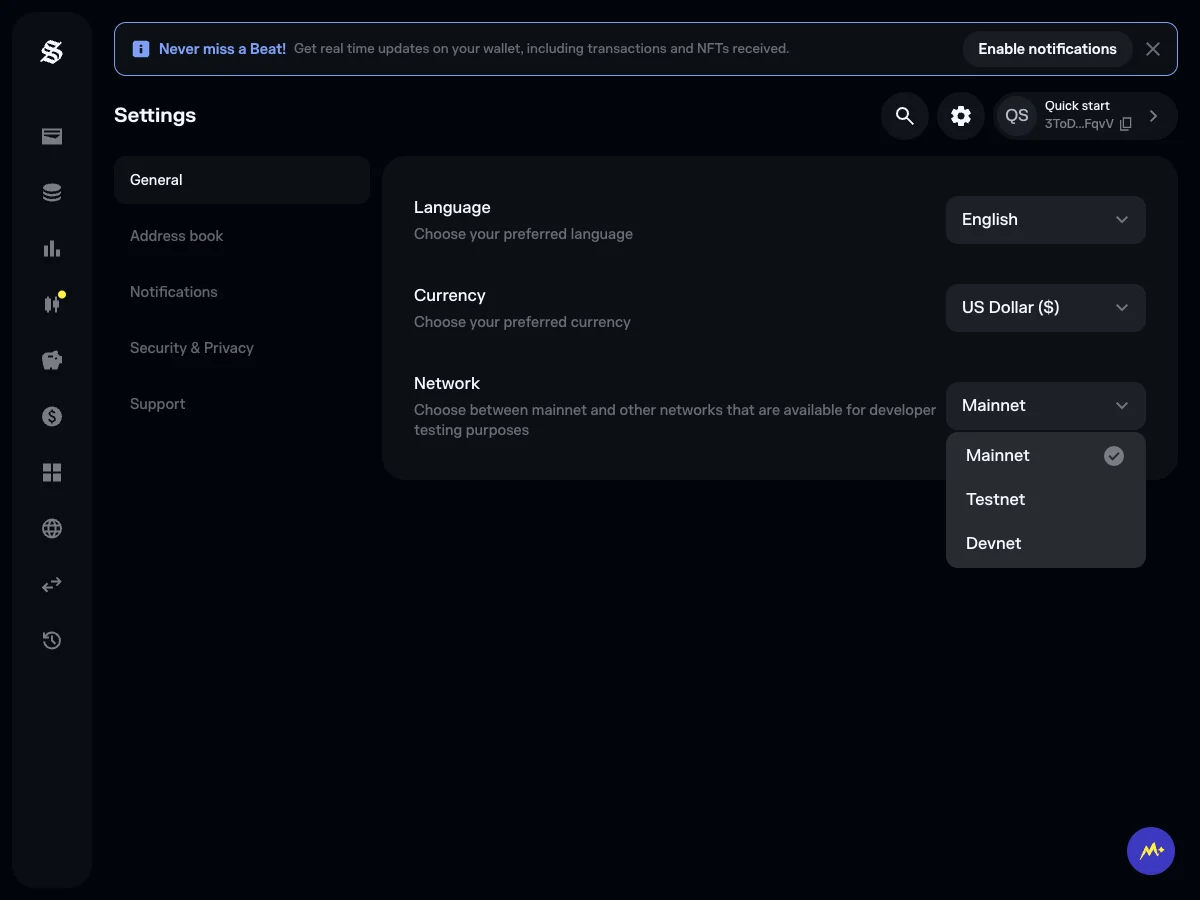
- Solflare (checked with 2.39.1): open the gear, then General. Under Network choose Devnet, and in the dialog Switching to Devnet choose Continue.
Quick start: sign in
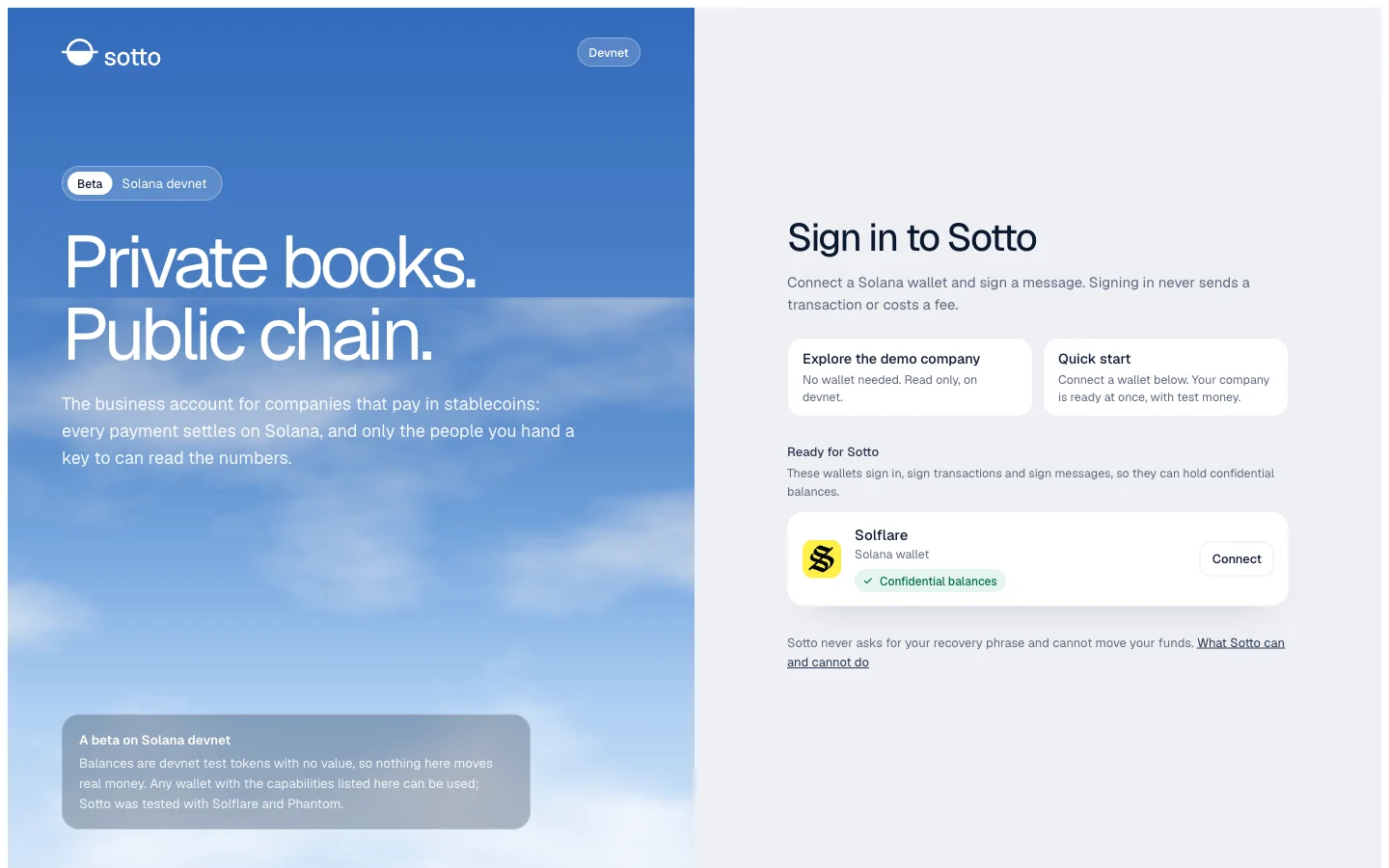
Open sottoapp.xyz/app, or choose Quick start on the home page. Next to your wallet choose Connect and approve the connection, then Sign in and approve the message. Signing in sends no transaction and costs nothing.
There is no form. Your company, named My company, is there at once and you land on its dashboard. You can change its name and details later.
Get ready to pay
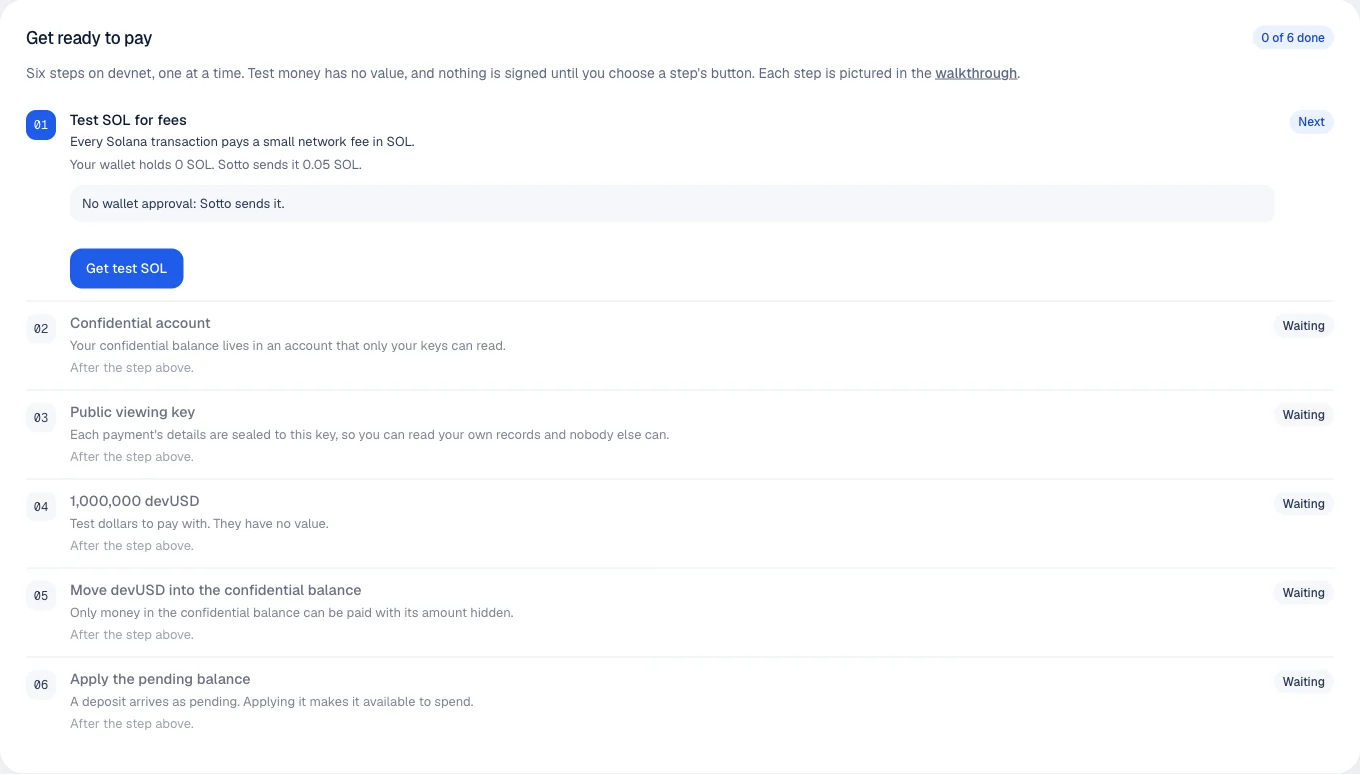
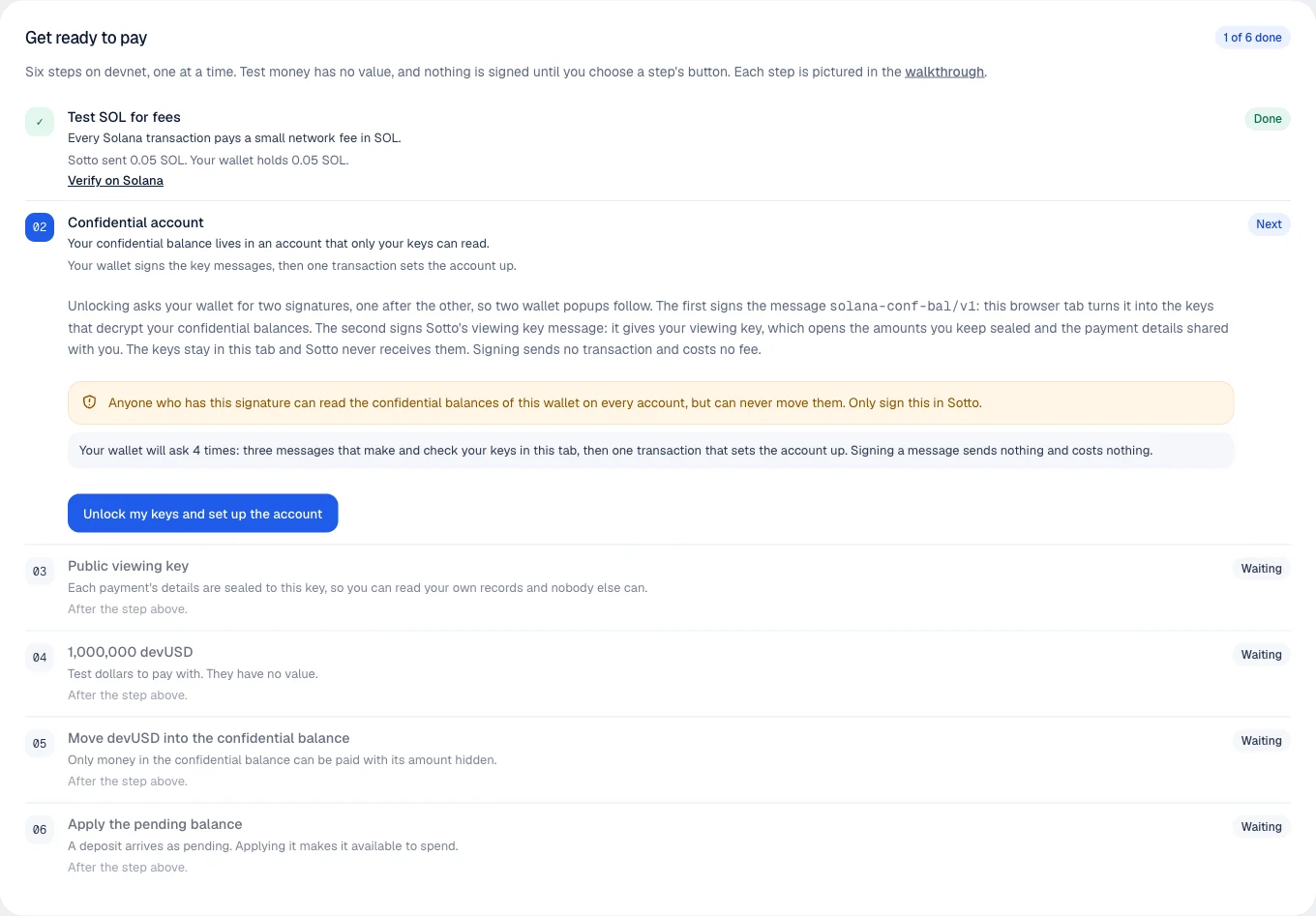
The dashboard opens with the checklist Get ready to pay. It has six steps, one in turn at a time, each with one button and a line that says what your wallet will ask before it opens. Nothing is signed until you choose a step's button.
- Get test SOL: Sotto sends your wallet 0.05 SOL for fees. No wallet window.
- Unlock my keys and set up the account: your wallet opens four windows, three messages that make and check your keys in this browser tab and one transaction that sets your confidential account up.
- Register public viewing key: one message. Payment records are sealed to this key, so you can read your own records and nobody else can.
- Get 1,000,000 devUSD: Sotto mints test dollars to your wallet. No wallet window.
- Move 100,000 devUSD: one transaction that wraps the devUSD and deposits it into your confidential balance. You can change the amount first; it is public onchain, the balance it joins is not.
- Apply pending balance: one transaction that makes the deposit available to spend.
Each finished step that happened onchain has its Verify on Solana link (registering the viewing key is a signed message, not a transaction). The same checklist is pinned at the top of Payments, Payroll and Proofs until it is complete. Then the dashboard says Ready. Make your first confidential payment, with the button Pay Atlas Freight.

Pay Atlas Freight
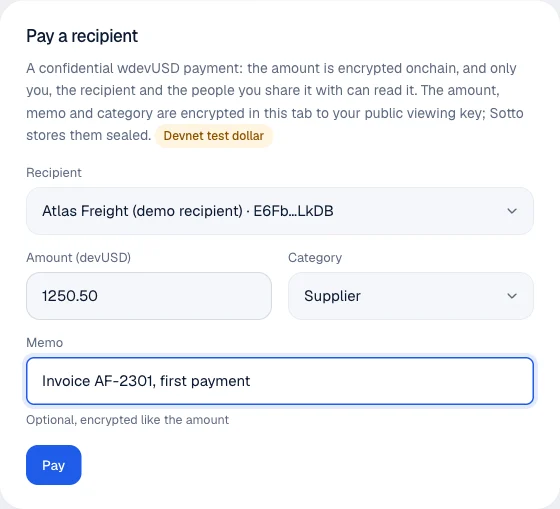
Pay Atlas Freight opens Payments with the card Pay a recipient and, under Recipient, Atlas Freight (demo recipient) chosen already: a company made by quick start has this demo recipient from the start, a demo wallet whose account can receive confidential payments. Type an amount under Amount (devUSD), for example 1250.50, a Memo if you like, and choose Pay. Solflare then asks for one transaction and then one message; Phantom asks for five transactions and then one message, as it signs the payment as five smaller transactions.
If something stops the payment, the card says what happened and why, with a button that fixes it in place: too little in the confidential balance, too little SOL, a signature your wallet refused. Your form keeps what you typed.
Check on the explorer that the amount is hidden
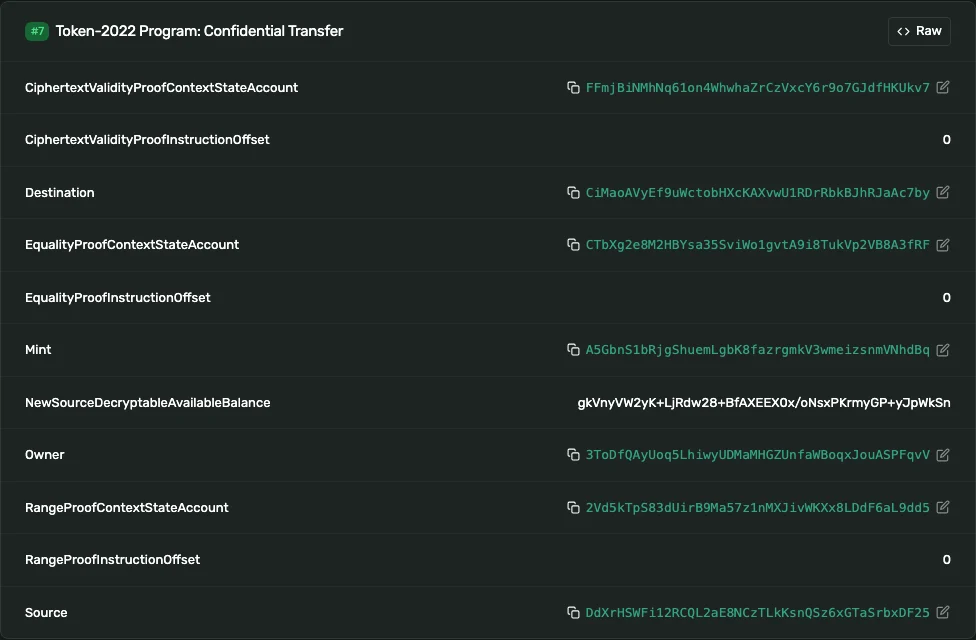
Under Recent payments, the column Transaction holds the payment's link to the Solana explorer. Open it. The explorer shows the instruction Token-2022 Program: Confidential Transfer with its source, destination and mint, and no amount: the number you typed is on this page of Sotto and nowhere on the explorer.
Prove a balance without showing it
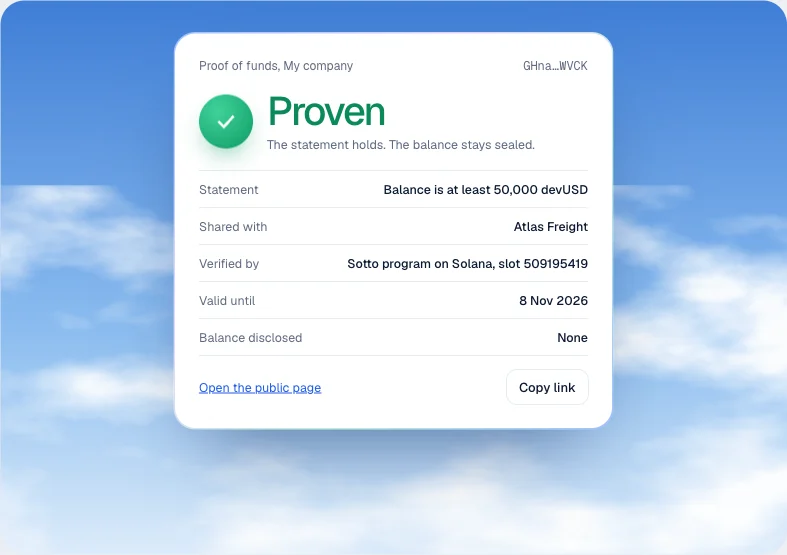
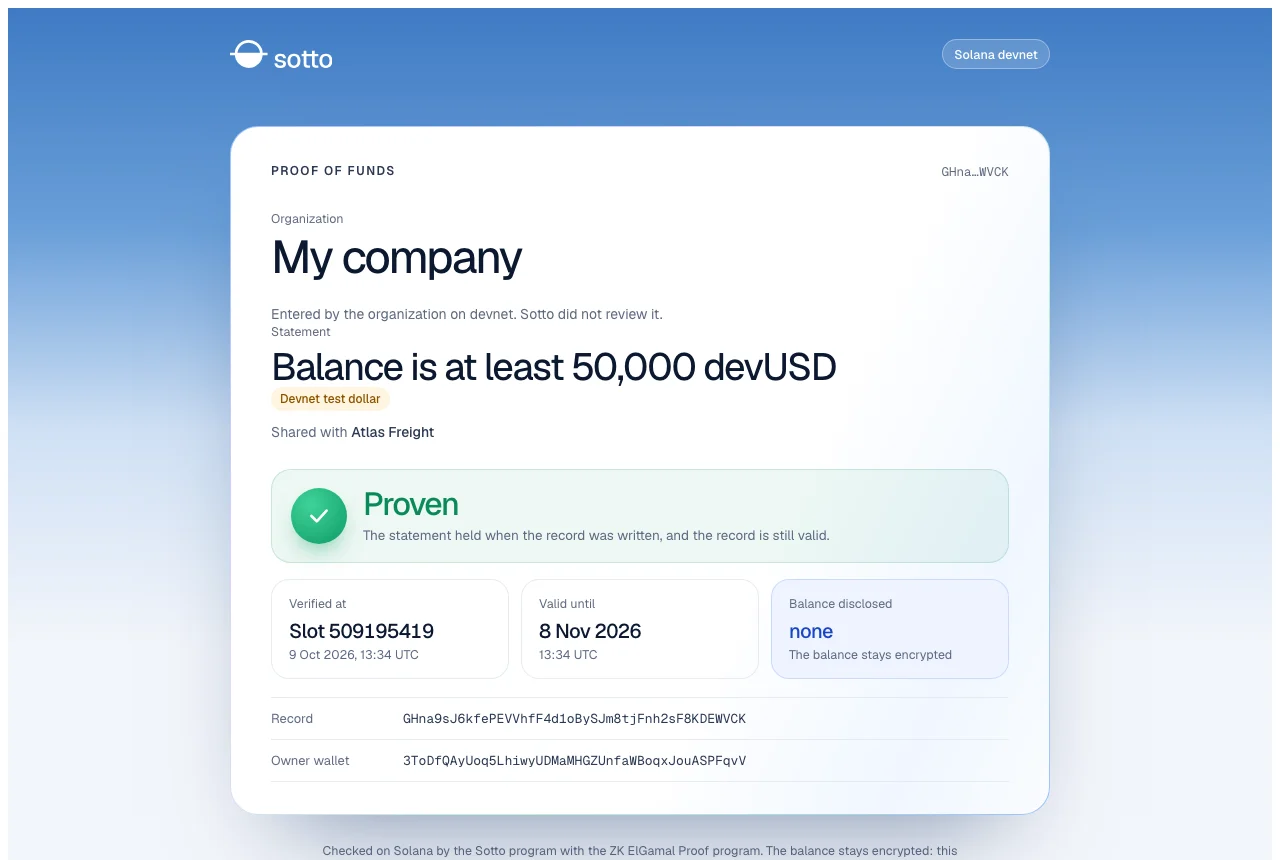
Open Proofs. In the card New proof, under Balance is at least choose Custom and type an amount your balance covers, for example 50000. Under Share the answer with type who the answer is for, then choose Generate proof. Your wallet asks for five transactions. The result says Proven, and Open the public page opens a page anyone can read without a wallet: it states that the balance is at least the amount, and discloses no balance.